
Overview
What is GravityMerge AI?
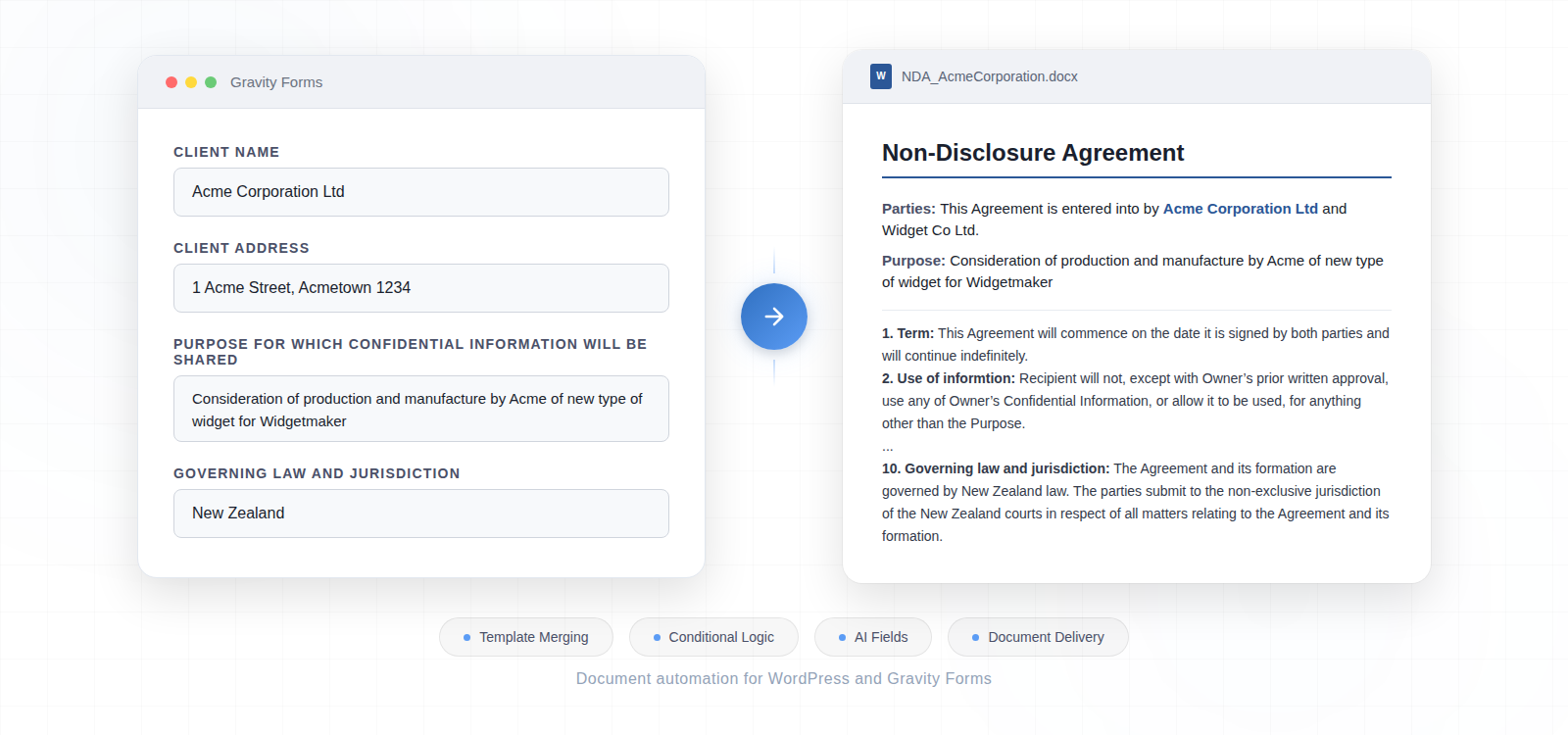
GravityMerge AI is a WordPress plugin that provides document automation for Gravity Forms with optional AI capabilities. It lets you create Word document templates with simple merge tags, then automatically generates fully merged, professionally formatted .docx files when users submit a form.
What can GravityMerge AI do?
- Substitute form field values into a Word document template using readable merge tags
- Show or hide entire sections of a document based on form answers using conditional tags
- Repeat table rows for list field data using loop tags
- Insert images uploaded through the form into the merged document
- Generate AI-written content based on form inputs using the optional AI Field
- Preserve document formatting including fonts, styles, tables, headers, footers, and numbering
- Deliver merged documents by download, email, or both
- Attach merged documents to Gravity Forms notification emails
- Manage document retention with automatic cleanup
What is the AI Field?
The AI Field is an optional custom Gravity Forms field type. When added to a form, it sends the form data and a system prompt to Claude on submission, and the AI-generated response is merged into the document template like any other field value. This lets you embed AI analysis, summaries, recommendations, or other generated text directly in your merged documents.
The AI Field requires an Anthropic API key. If you do not use the AI Field, GravityMerge AI works as a purely local merge engine with no external API calls.
How does the user obtain the merged document?
There are two delivery methods, which can be used independently or together:
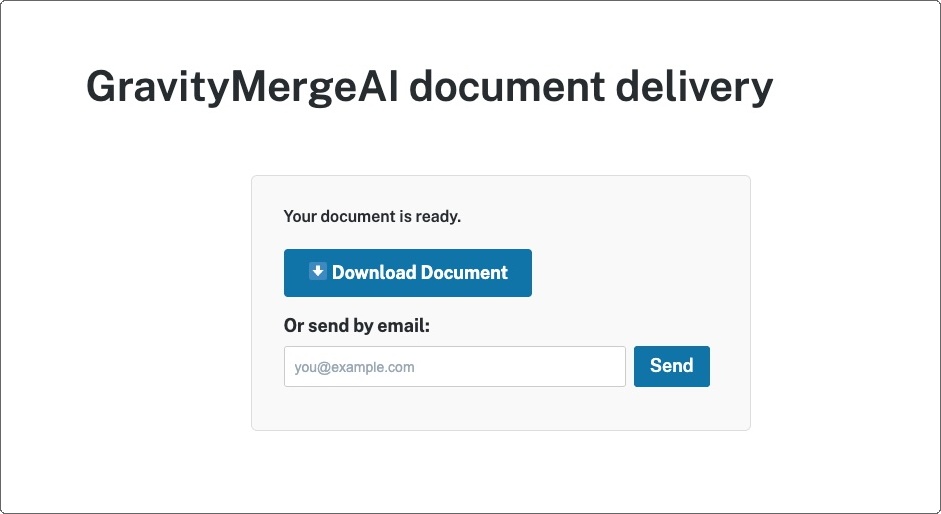
Delivery page: After submitting the form, the user is shown a confirmation page with options to download the .docx file and/or email it to an address they provide. The administrator controls which options are available.
Notification attachment: The merged document can be automatically attached to any Gravity Forms notification email. This is configured in the notification settings for each form, and allows the document to be sent directly to a designated recipient (such as a site administrator) without requiring the delivery page.
Summary of how it works
1. Create a Gravity Forms form with the fields you need, and create a page with the form in the usual way.
2. Create a Word document template with merge tags that correspond to your form fields. (Instructions on how to do this are set out below.)
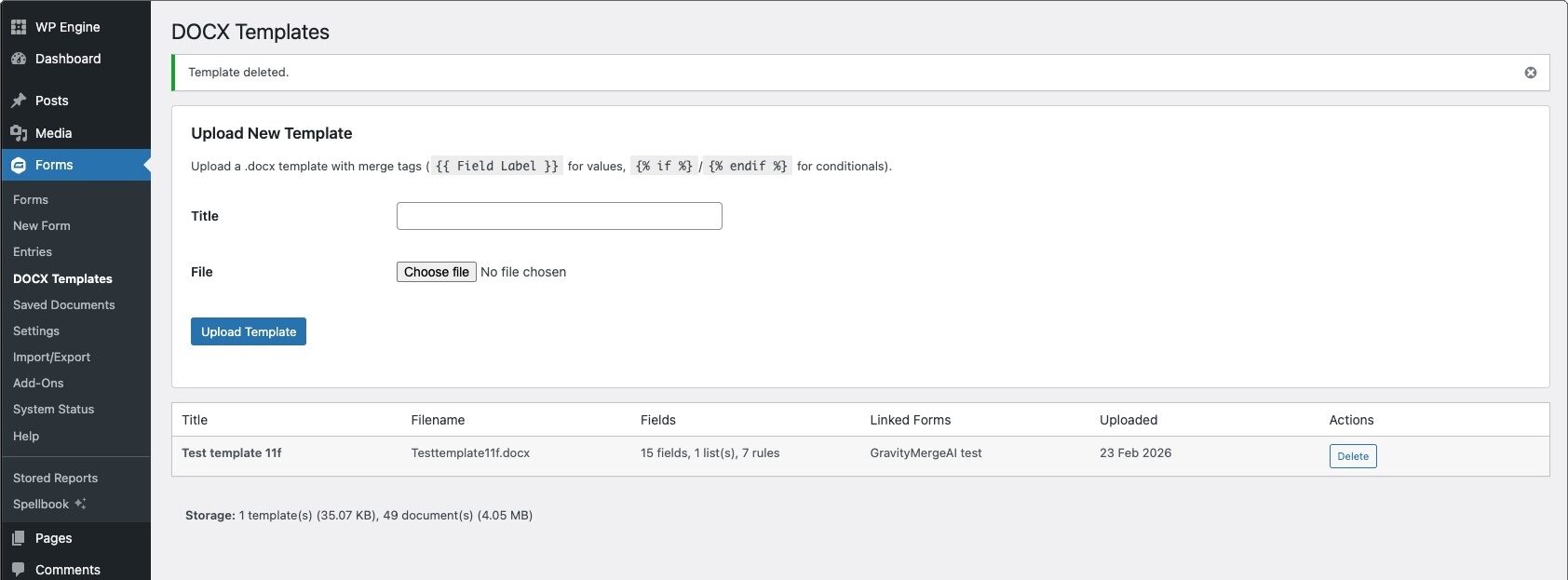
3. Upload the template to GravityMerge AI (to the ‘DOCX Templates’ area).
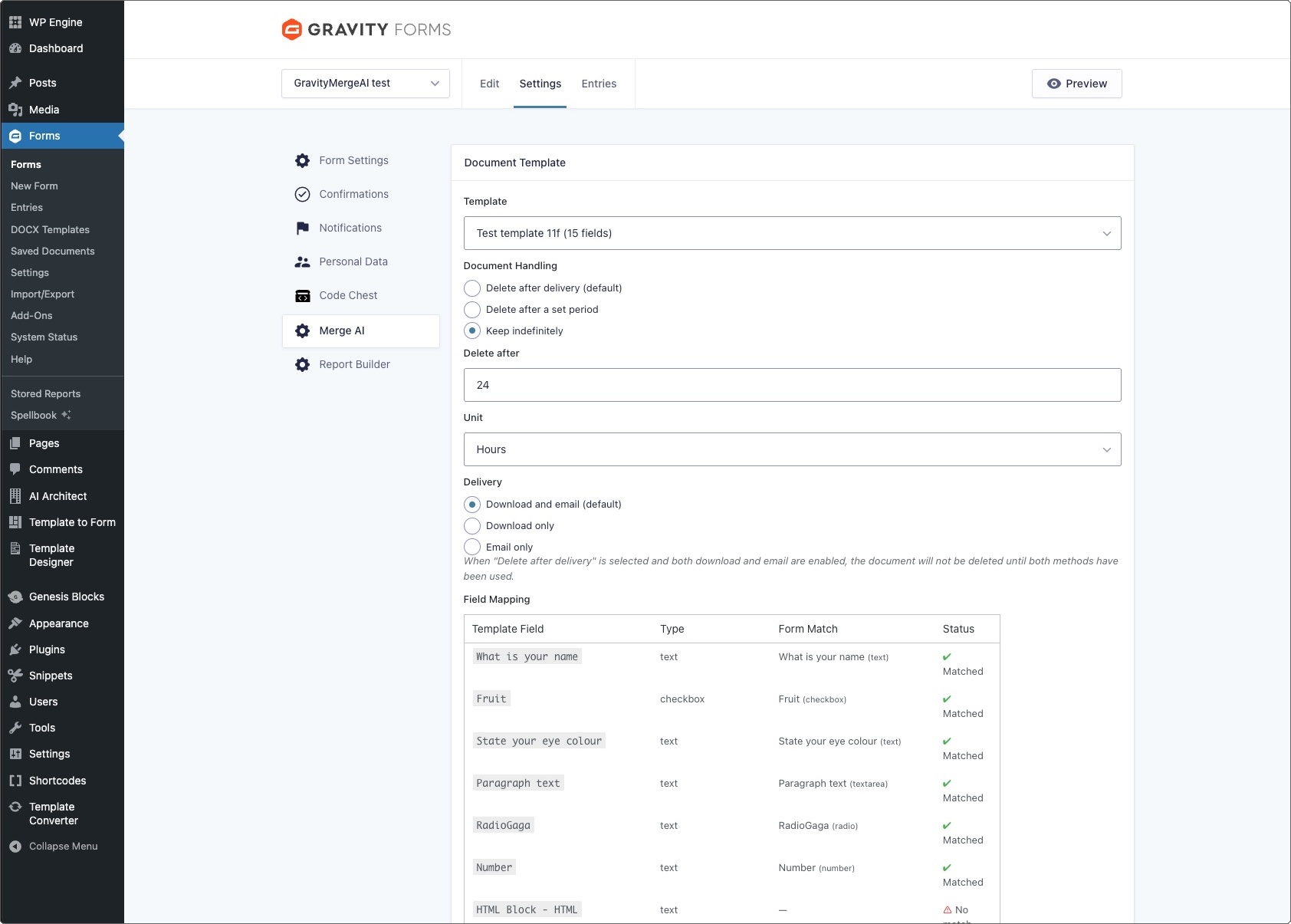
4. Through the form’s Merge AI settings, link the template to your form:
5. Create a confirmation ‘page’ for your form with the following shortcode (if you want users to download or email the document themselves):
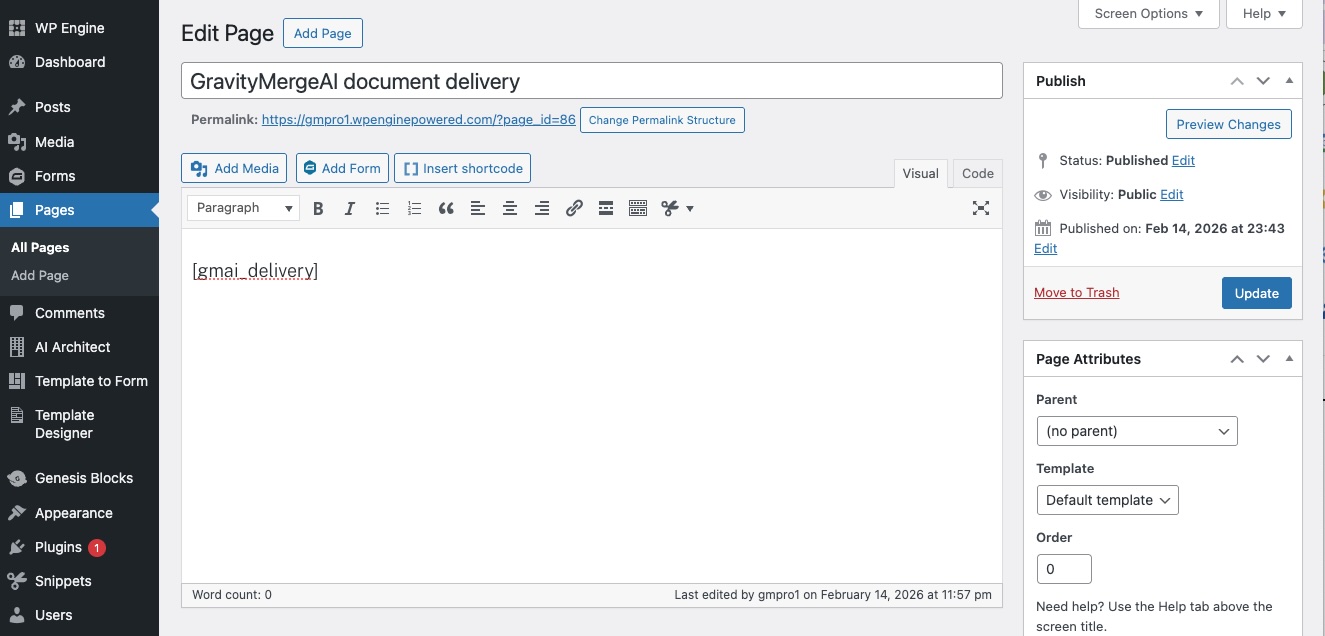
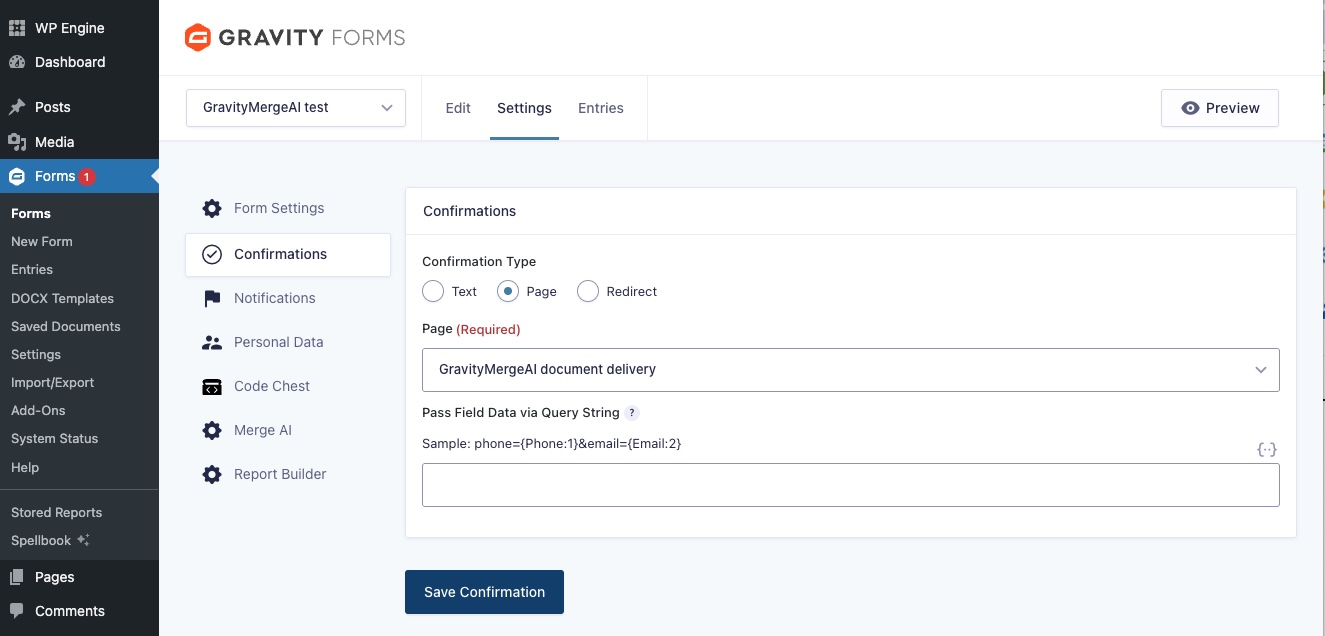
6. In the confirmation settings for your form, set the Confirmation Type to ‘Page’ and select the page you created in the previous step:
7. Optionally, enable document attachment on one or more notification emails (in the Notifications settings for your form).
8. A user fills in and submits the form. GravityMerge AI merges the form data into the template, producing a .docx file. The user receives the document via the delivery page, notification email, or both.
Installation
Requirements
- WordPress 6.0 or later
- PHP 8.0 or later
- Gravity Forms installed and active (purchased separately from gravityforms.com)
- An Anthropic API key (only required for AI Field features – you don’t need an API key to use the plugin)
Installing GravityMerge AI
- Download the plugin ZIP file.
- In WordPress admin, go to Plugins → Add New → Upload Plugin.
- Select the ZIP file and click Install Now, then activate it.
- Go to Forms → Settings → GravityMerge AI to configure the plugin.
Plugin settings
Go to Forms → Settings → GravityMerge AI.
Document Handling controls what happens to merged documents after delivery. Options are: delete after delivery, delete after a set period, or keep indefinitely.
Delete after / Unit lets you define the retention period when timed deletion is selected.
Delivery Method controls whether documents are available by download and email, download only, or email only.
Anthropic API Key is required for AI Field functionality. Not needed if you only use standard merge tags.
Default AI Model sets the Claude model used for AI Fields. Can be overridden per field.
Default Max Response Length controls the token limit for AI-generated content.
Default Max Retries sets how many times a user can regenerate an AI Field response per submission.
Creating a template
Template basics
A GravityMerge AI template is a standard .docx file created in Microsoft Word, Google Docs, or another word processor that exports .docx format. It contains merge tags that will be replaced with form data when a document is generated.
Merge tag syntax
Merge tags use double curly braces: {{ Field Label }}. The text inside the braces must match the field label (the label visible to users on the form). Matching is case-insensitive and ignores leading and trailing whitespace.
Example: if your form has a field labelled “Client Name”, your template would contain {{ Client Name }}.
Conditional content
To show or hide sections of your document based on form answers, use conditional tags. These should be placed in their own paragraphs in the Word document:
{% if Client Type == "Individual" %}
This section appears only for individual clients.
{% elif Client Type == "Company" %}
This section appears only for company clients.
{% else %}
This section appears for all other client types.
{% endif %}
Supported operators are ==, !=, contains, not contains, is empty, and is not empty. You can also use compound conditions with and and or.
Example with multiple conditions:
{% if Country == "New Zealand" and Client Type == "Individual" %}
New Zealand individual client terms apply.
{% endif %}
Inline conditionals
For conditional text within a single paragraph (rather than showing or hiding entire paragraphs), use inline syntax:
The client is a {% if Client Type == "Company" %}company{% else %}person{% endif %} based in {{ Country }}.Checkbox fields and the contains operator
Gravity Forms checkbox fields allow users to select multiple options. GravityMerge AI stores the selected options as a comma-separated string of values (not the display text). Use the contains and not contains operators to check whether a particular option was selected.
How checkbox data is stored
For a checkbox field labelled “Preferred Fruit” with these options:
| Display text | Value |
|---|---|
| Granny Smith Apples | apples |
| Cavendish Bananas | bananas |
| Bing Cherries | cherries |
If a user selects “Granny Smith Apples” and “Bing Cherries”, GravityMerge AI stores:
| Key | Value |
|---|---|
Preferred Fruit |
apples, cherries |
Preferred Fruit - apples |
apples |
Preferred Fruit - cherries |
cherries |
Preferred Fruit - bananas |
(empty string) |
Using contains in conditionals
To check whether an option was selected, use contains with the option’s value:
{% if Preferred Fruit contains "apples" %}
The user selected apples.
{% endif %}
To check whether an option was not selected, use not contains (or equivalently, does not contain):
{% if Preferred Fruit not contains "bananas" %}
Bananas were not selected.
{% endif %}
Important: The contains operator matches against the checkbox choice value, not the display text. This would not work:
{% if Preferred Fruit contains "Granny Smith Apples" %}…unless the choice’s value is also set to “Granny Smith Apples”.
Checkbox values must not contain commas
GravityMerge AI joins the selected values into a comma-separated string (e.g. "apples, cherries"), and the contains operator splits that string on commas to test for membership. If a value itself contains a comma, the split will fragment it and the contains check will always fail.
To avoid this, use short, comma-free values for checkbox choices. The display text (what the user sees on the form) can be as long and descriptive as needed, but the stored value should be short and must not contain commas.
To set separate display text and values in Gravity Forms, enable “Show Values” in the checkbox field’s settings (under the Choices section). This reveals a separate value field next to each choice label.
Alternative: checking individual options with is empty
As an alternative to contains, As an alternative to contains, you can check individual checkbox options directly using the sub-entries that GravityMerge AI creates for each option:
{% if Preferred Fruit - apples is not empty %}
Apples were selected.
{% endif %}

{% if Preferred Fruit - bananas is empty %}
Bananas were not selected.
{% endif %}
The sub-entry key follows the format Field Label - Value. This approach avoids the comma-splitting issue entirely, but requires you to know the exact value string.
Repeating table rows
For list field data, use loop tags to repeat table rows. Create a table with the loop tags in their own rows, and merge tags for column values inside the loop:
{% for row in Milestone details %}
{{ row.Amount }}    {{ row.Due date }}    {{ row.Milestone }}
{% endfor %}
The loop iterates over each entry in the Gravity Forms List field named “Milestone details”. Each {{ row.ColumnName }} tag is replaced with the corresponding column value. The table row containing the merge tags is repeated for each entry in the list.
Image insertion
To insert an image uploaded through a Gravity Forms file upload field, use the field’s label as a merge tag: {{ Photo }}. The uploaded image will be inserted into the document at that position.
AI Field merge tags
The AI Field is merged like any other field. Use the field’s label as the merge tag, for example {{ AI Analysis }}. The AI-generated text will be inserted at that position in the document.
Linking a template to a form
Available merge tags reference
On the form settings page (Forms → [Your Form] → Settings → Merge AI), you can see a list of all available merge tags for the form, grouped by field type. Click any tag to copy it. This reference is available whether or not a template has been uploaded, so you can use it while building your template.
You can also download a .docx starter template that contains all available merge tags for the form, giving you a starting point for your template design.
Uploading a template
Go to Forms → [Your Form] → Settings → Merge AI. In the Template section, select your .docx template file from the dropdown (templates are managed in the DOCX Templates area).
Field mapping
After selecting a template, GravityMerge AI analyses it and displays a field mapping table. This shows each merge tag found in the template, its type, whether it matches a form field, and the match status. Tags that do not match a form field are flagged so you can correct them.
Form-level settings
Each form can override the global delivery method and document handling settings. These are configured on the same settings page below the template selection.
Configuring document delivery
Delivery page
To let form submitters download or email themselves the merged document:
1. Create a new WordPress page (e.g., “Your Document”).
2. Add the following shortcode to the page content:
3. In your form’s Confirmation settings, set the confirmation type to “Page” and select the page you created.
The delivery page displays download and/or email options based on your form’s delivery method setting.
Notification attachment
To have the merged document automatically attached to a notification email:
- Go to Forms → [Your Form] → Settings → Notifications.
- Edit the notification you want to attach the document to (e.g., “Admin Notification”).
- In the GravityMerge AI section at the bottom, check “Attach merged document to this notification”.
- Click Update Notification.
The document will be attached to that notification email every time the form is submitted. This works independently of the delivery page — you can use both, or just one.
The AI Field
Adding an AI Field to your form
In the Gravity Forms editor, find “AI Field” in the Advanced Fields section and drag it onto your form.
Important: The AI Field is restricted to logged-in users. This prevents anonymous visitors from consuming Anthropic API credits. If the form is accessible to anonymous users, the AI Field will not process for them.
Configuring the AI Field
Field Label is the label shown to the user and the merge tag name in your template.
System Prompt gives Claude detailed instructions about what to generate. Be specific about structure, tone, and content requirements.
AI Model lets you override the default model for this specific field.
Max Response Length lets you override the token limit for this field.
User Prompt Placeholder is optional helper text shown in the user’s text area on the form.
How the AI Field works at submission
When the form is submitted, the AI Field sends the system prompt and form data to Claude. The AI-generated response is stored as the field value and is merged into the document template like any other field. If retries are enabled, the user can regenerate the response before the document is finalised.
Document management
Stored Documents page
Go to Forms → Settings → GravityMerge AI and open the Stored Documents tab to view generated documents currently on the server. From here you can download or delete individual documents.
Automatic cleanup
If timed deletion is configured, a scheduled task periodically deletes expired documents from both the filesystem and the entry metadata.
Security
File storage
Merged documents are stored in a non-web-accessible directory and served only through authenticated PHP handlers.
Access control
Each form submission generates a unique, cryptographically random access token. All download and delivery endpoints require this token, preventing unauthorised access to documents.
AI Field security
AI generation is restricted to logged-in WordPress users. The Anthropic API key is stored in the WordPress database using the Gravity Forms settings framework and is only used server-side.
Word-specific reliability
XML run consolidation
Microsoft Word frequently splits text into multiple XML “runs” internally — a single sentence might be stored as several fragments due to spell-checking, editing history, or formatting changes. This means a merge tag like {{ Client Name }} might be stored in the XML as {{ Cli + ent Na + me }}, causing template engines to miss it.
GravityMerge AI automatically consolidates adjacent runs with identical formatting before processing merge tags. This ensures tags work reliably regardless of how Word has internally fragmented the text.
Template validation
When a template is uploaded, it is inspected to detect merge fields, loops, and conditionals. The results are displayed in the field mapping table with match status indicators, helping you identify and fix any issues before deploying the form.
Common questions
Does GravityMerge AI send data to a third party?
Only if you use the AI Field. When an AI Field is processed, the form data and system prompt are sent to Anthropic’s API. Standard merge tag processing happens entirely on your own server with no external calls.
Can I use GravityMerge AI without AI features?
Yes. If you do not add an AI Field and do not need AI-generated content, GravityMerge AI works as a purely local merge engine. No API key is required.
What happens if the Anthropic API is unavailable?
If the API is unreachable when an AI Field is processed, the user sees an error and can retry. Non-AI merge operations are completely unaffected.
What file formats are supported for templates?
Only genuine .docx files are supported. Files with .doc, .odt, or other extensions are not compatible.
What merge tag format does GravityMerge AI use?
Basic substitution tags use {{ Field Label }}. Conditional tags use {% if %} / {% elif %} / {% else %} / {% endif %}. Loop tags use {% for row in Field %} / {% endfor %}. This syntax is inspired by Jinja2 but is processed by GravityMerge AI’s own merge engine.
How do merge tags match form fields?
Merge tags match against the field label — the label visible to users on the front-end form. Matching is case-insensitive. For example, a field labelled “Client Name” is matched by {{ Client Name }}, {{ client name }}, or {{ CLIENT NAME }}.
Are there any hosting considerations?
GravityMerge AI requires PHP’s ZipArchive extension (available on most hosts). For AI features, the server must be able to make outbound HTTPS requests to Anthropic’s API.
Is there a limit on merges, templates, or documents?
There are no plugin-level limits. The plugin runs in your WordPress environment and is under your control, subject to your hosting resources and any API usage you opt into via the AI Field.