
Overview
What is Template Designer?
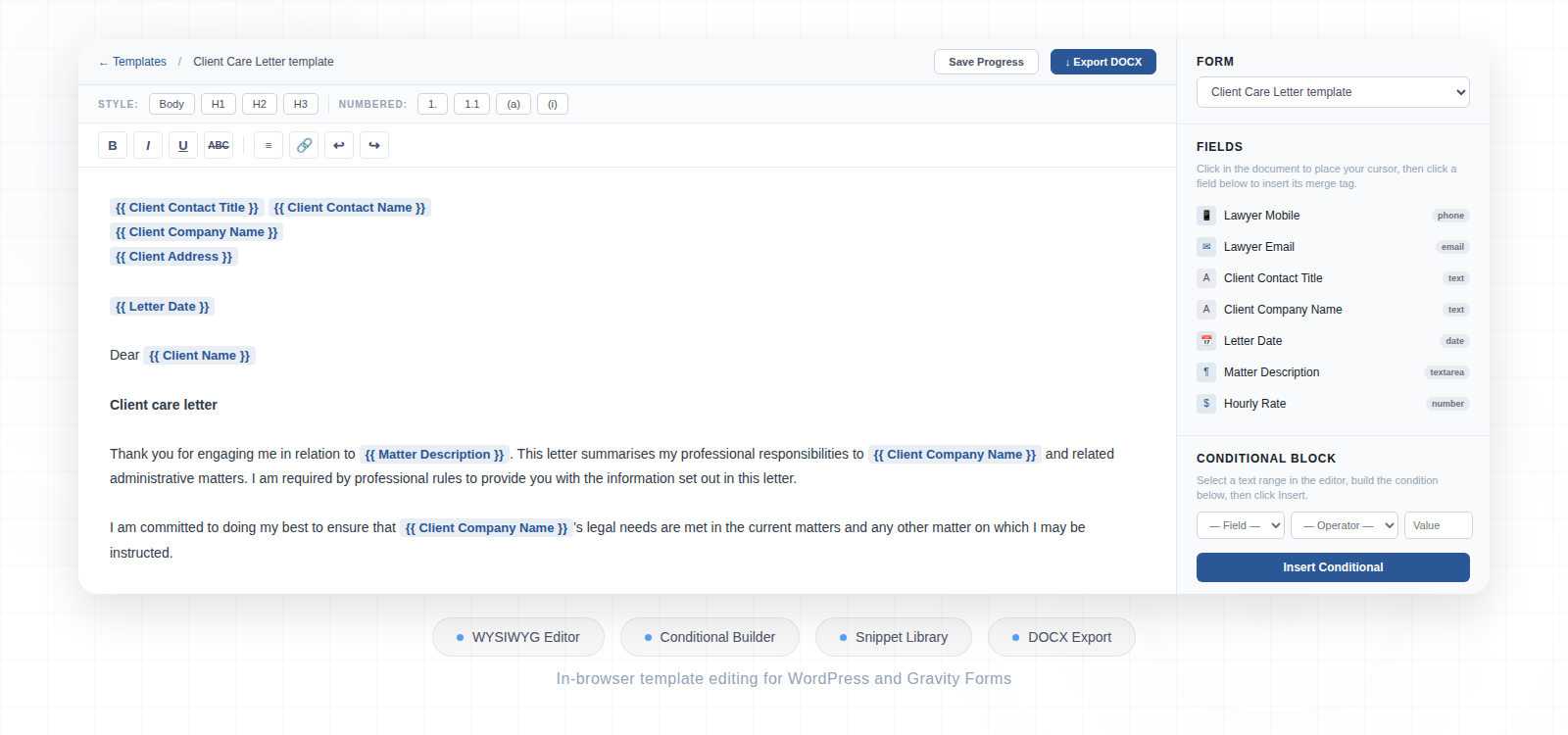
Template Designer is a WordPress-based tool for building and editing GravityMerge AI document templates without leaving your admin dashboard. It provides two working modes: creating a template from scratch using a built-in rich text editor, or uploading an existing Word document and annotating it with merge tags visually.
Why use it instead of editing in Word?
- It knows your Gravity Forms fields and lets you insert merge tags with a click — no need to remember or type tag syntax
- It provides a visual condition builder for
{% if %}/{% elif %}/{% else %}/{% endif %}blocks - It handles loop insertion for List fields with the correct
{% for %}/{% endfor %}syntax - The Clause Bank lets you store and reuse common sections across templates
- The scratch editor supports hierarchical numbering (1. / 1.1 / (a) / (i)) commonly used in legal documents
- No AI or API key is required — everything runs locally in WordPress
Requirements
- WordPress 6.0 or later
- PHP 8.0 or later
- Gravity Forms installed and active
Getting started
Accessing Template Designer
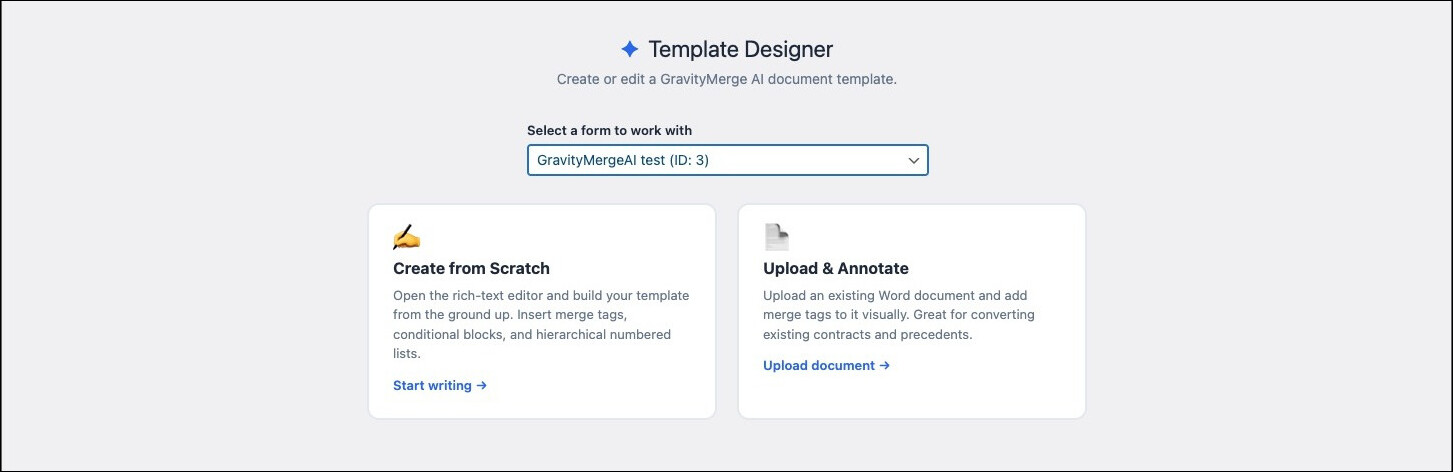
After activation, open Template Designer in the WordPress admin menu. The landing page prompts you to select a form and choose a mode.
Selecting a form
Template Designer needs to know which form your template belongs to so it can display the correct fields and merge tags. Select a form from the dropdown before proceeding.

Choosing a mode
Create from Scratch opens a rich text editor for building a new template from the ground up.
Upload & Annotate lets you upload an existing .docx file and add merge tags to it visually.
Create from scratch mode
The editor interface
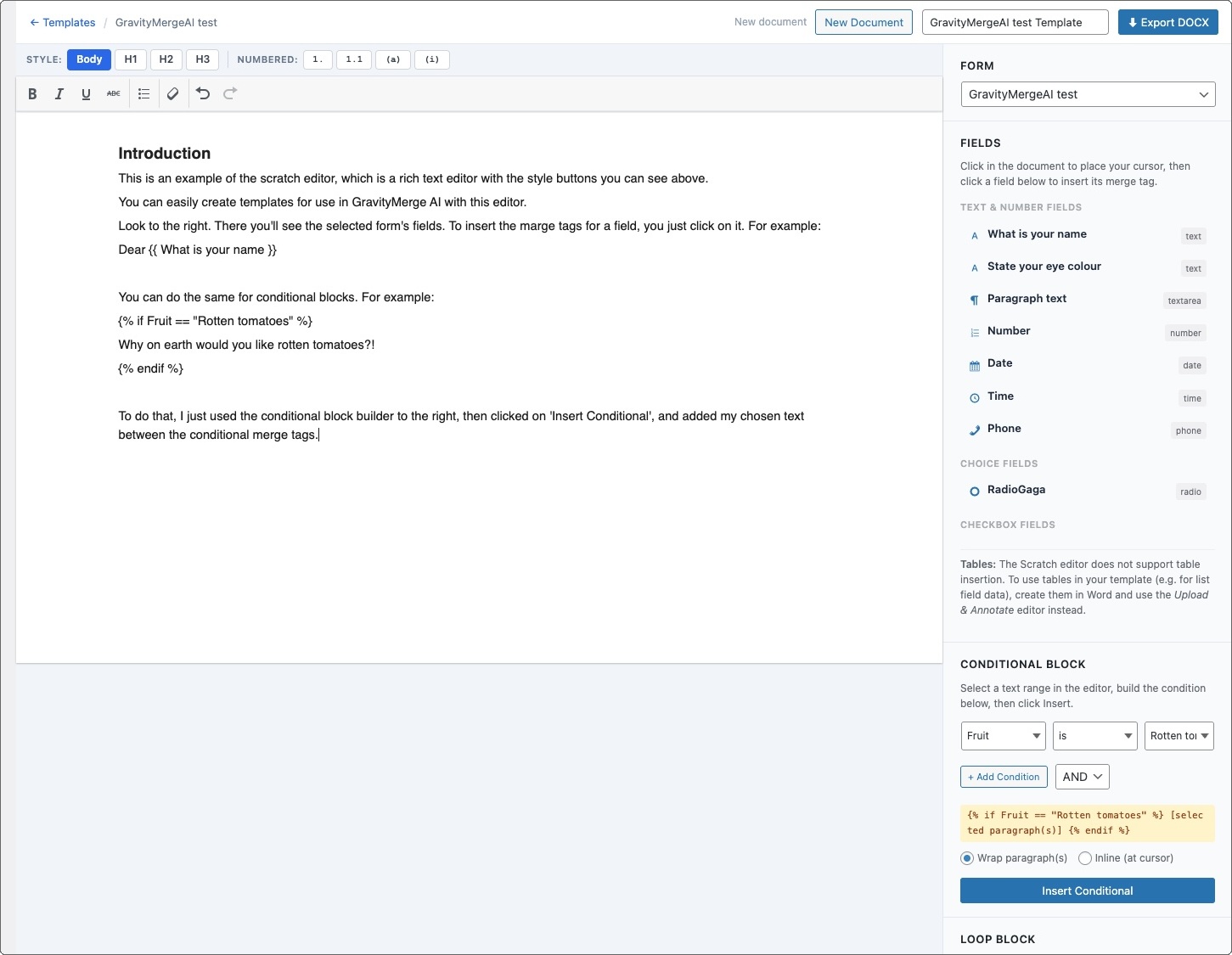
The scratch editor provides a rich text editing area on the left and a field panel on the right. The toolbar includes formatting controls (bold, italic, underline, strikethrough, bullet lists), heading styles (H1, H2, H3), body text, and four levels of hierarchical numbering.
Inserting merge tags
The field panel shows all fields in your selected form, grouped by type (text, choice, checkbox, etc.). Click any field to insert its merge tag at the cursor position in the correct {{ Field Label }} format.
Building conditional blocks
Use the condition builder panel to create conditional blocks. Select a field, choose an operator (equals, not equals, contains, is empty, etc.), and enter a comparison value. The plugin inserts the correctly formatted {% if %} / {% endif %} block for you. You can add multiple conditions with AND/OR logic, and choose whether to wrap selected paragraphs or insert inline at the cursor.
Inserting loops
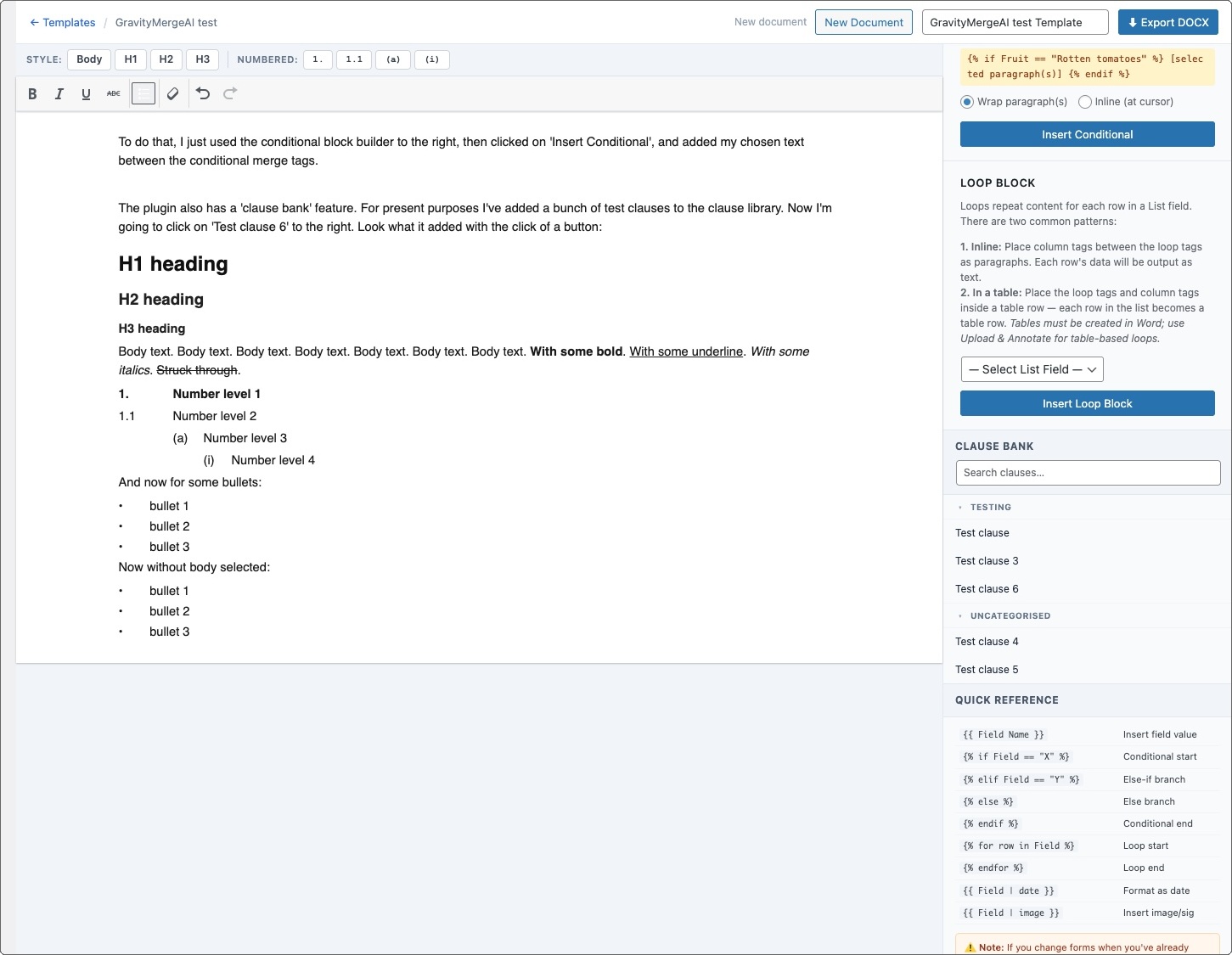
For List fields, use the loop insertion tool to insert {% for row in Field %} / {% endfor %} blocks with the correct column references.
Hierarchical numbering
The style toolbar supports four levels of numbered paragraph styles: 1. (level 1), 1.1 (level 2), (a) (level 3), and (i) (level 4). Apply these styles to paragraphs and the numbering is calculated automatically. The numbering is preserved when exported to .docx.
Saving and autosave
Click Save Progress to save your work at any time. The editor also autosaves every 60 seconds after your last edit. If you navigate away and return, your draft is restored automatically.
Exporting
Click Export DOCX to generate a production-ready .docx file. This file is suitable for uploading to GravityMerge AI and linking to your form.
Upload & Annotate mode
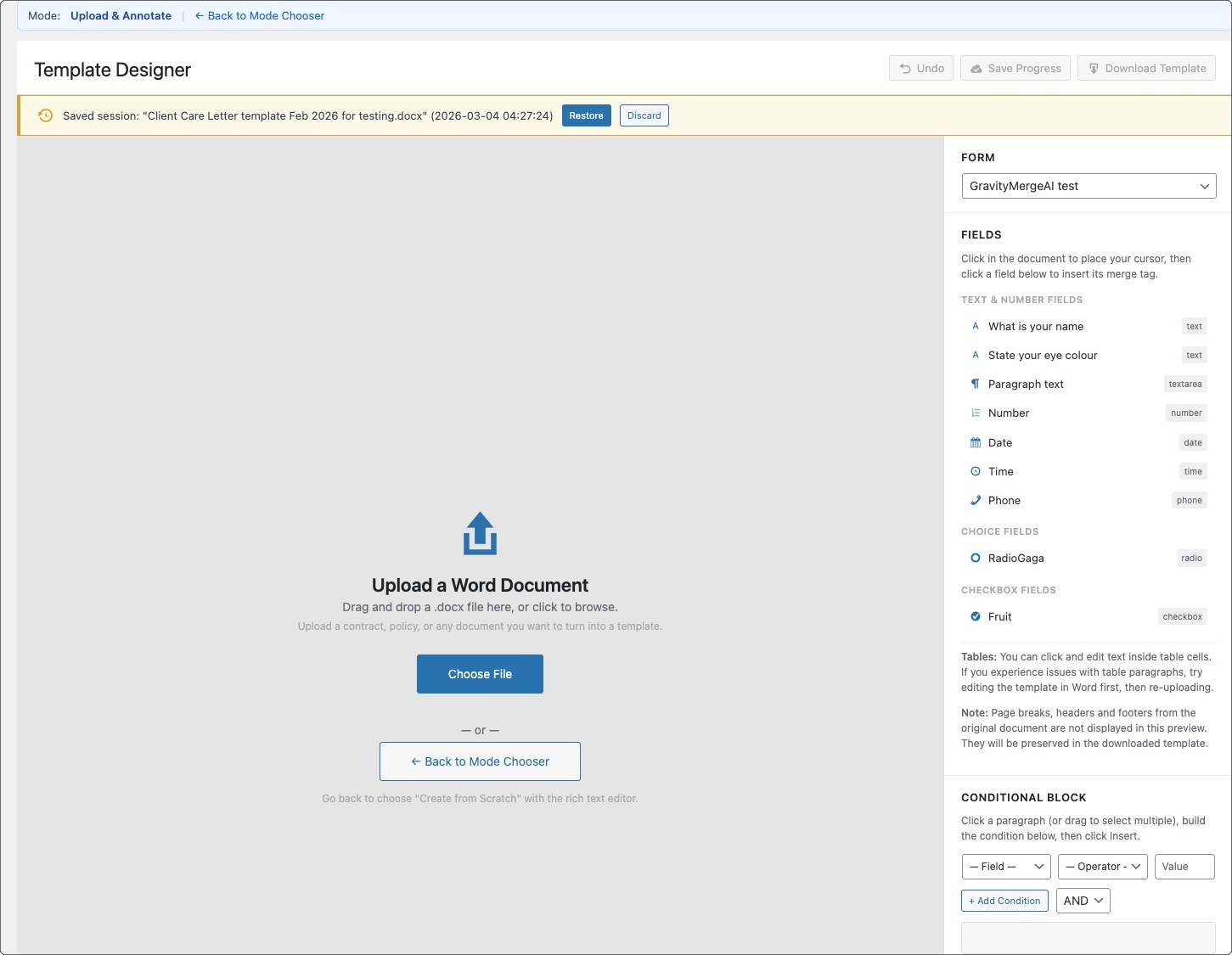
Uploading a document
Click the upload area or drag and drop a .docx file. Template Designer renders a preview of the document with its existing formatting, styles, and structure preserved.
Inserting merge tags
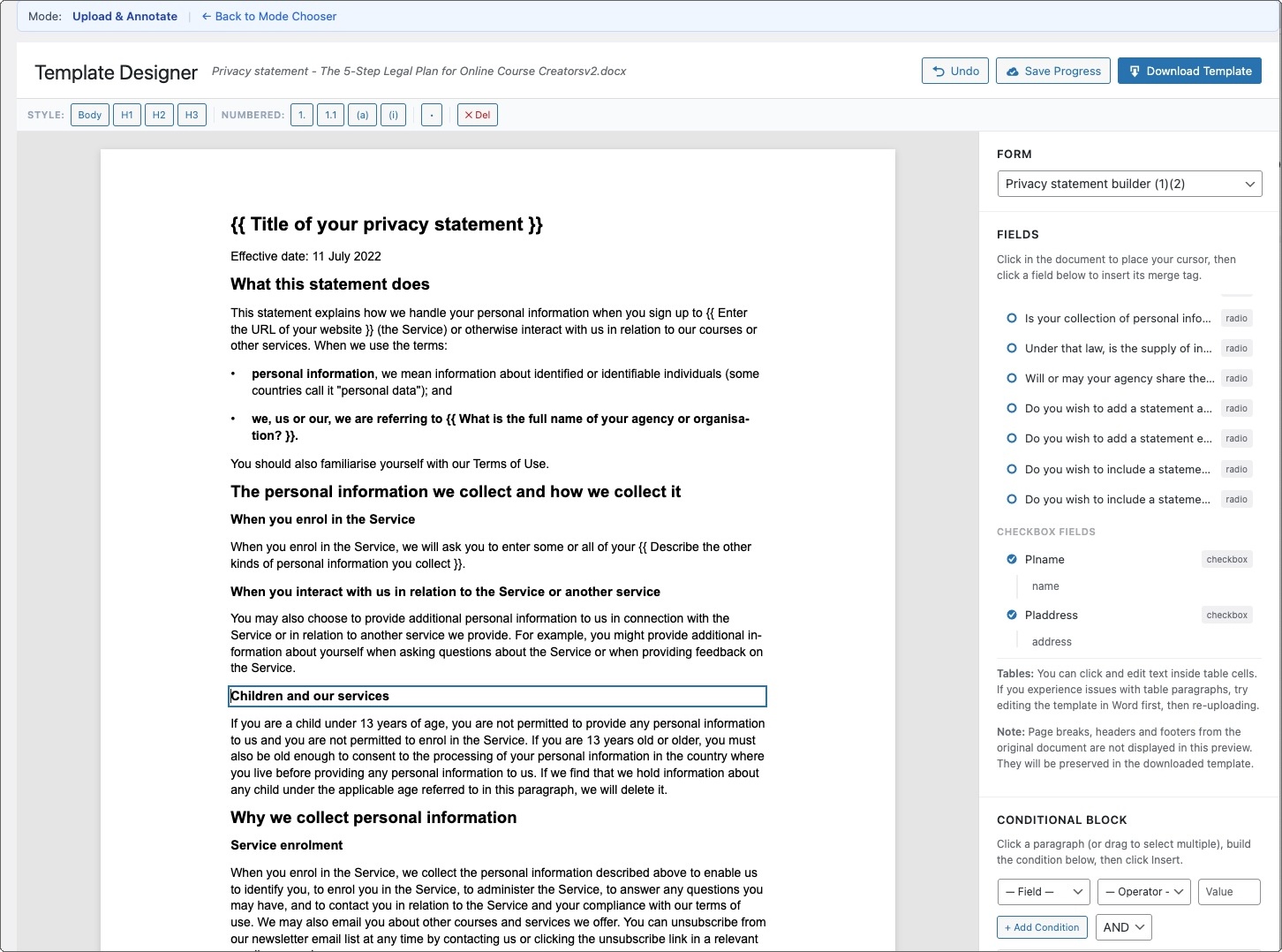
Click in the document to place your cursor, then click a field from the field panel on the right to insert its merge tag. You can also select existing text and replace it with a merge tag.
Adding conditional blocks
Select one or more paragraphs that should be conditional, then use the condition builder to wrap them in conditional tags. You can also insert inline conditionals at the cursor position.
Changing paragraph styles
Select a paragraph and use the style toolbar to change its style (Body, H1, H2, H3, or any of the four numbered levels). This is useful for restructuring the document or applying numbering to paragraphs that don’t already have it.
Undo
The annotate mode maintains an undo history. Click Undo to step back through changes.
Saving and autosave
Click Save Progress to save your current state. The editor also autosaves every 60 seconds after your last modification. Your session is preserved if you navigate away and return.
Downloading
Click Download Template to download the modified .docx file with all your merge tags, conditionals, and edits applied. The original document’s formatting, headers, footers, and page layout are preserved.
The Clause Bank
What is the Clause Bank?
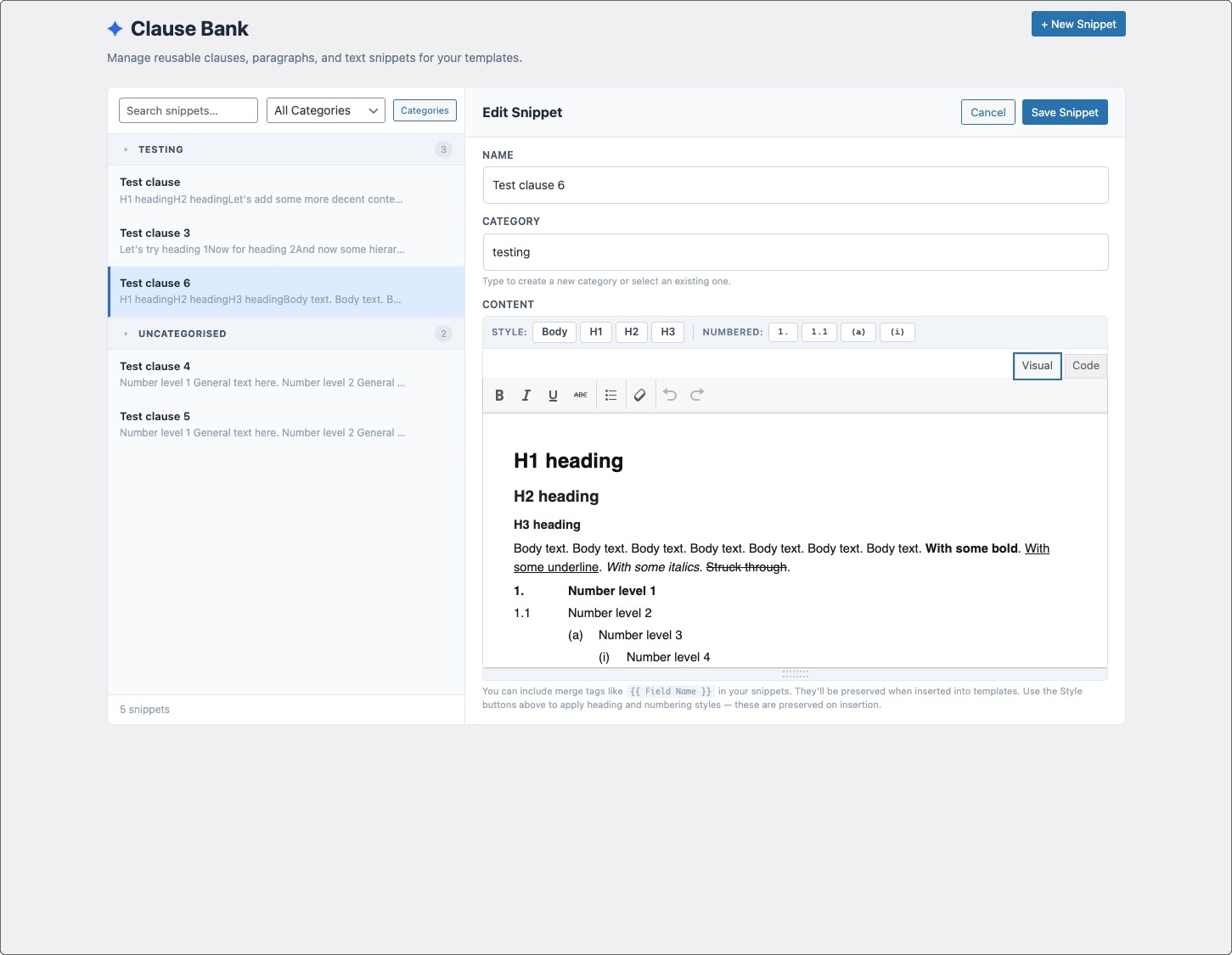
The Clause Bank is a library of reusable text snippets — standard clauses, boilerplate paragraphs, disclaimers, and commonly used sections. You can organise snippets into categories and insert them into any template with a click.
Accessing the Clause Bank
Go to Template Designer → Clause Bank in the admin menu to manage your snippet library. The Clause Bank is also accessible as a panel within both editor modes.
Managing snippets
Create snippets with a title, category, and content. Categories help organise your library (e.g., “Confidentiality”, “Limitation of Liability”, “Disclaimers”). You can create, rename, and delete categories as needed.
Using snippets in templates
When editing a template in either mode, use the Clause Bank panel to browse, search, and filter snippets. Click a snippet to preview it, then insert it at the cursor position. Snippets can include merge tags and conditional blocks — they’ll be inserted exactly as stored.
Common questions
Do I need GravityMerge AI to use Template Designer?
Gravity Forms is required so the plugin can read your form fields. The templates you create are designed for use with GravityMerge AI, so you will need that plugin to use the templates in production.
Do I need an API key?
No. Template Designer does not use AI. Everything runs locally in your WordPress installation.
Does Template Designer replace Microsoft Word?
For documents with complex layouts, advanced typography, or intricate table designs, Word may still be the better design tool. Template Designer is especially useful for inserting merge tags, managing conditions, building simpler templates, and working with the Clause Bank — all without leaving WordPress.
Can I edit a template that is already uploaded to GravityMerge AI?
Yes. Download the template from your form settings, open it in Template Designer’s Upload & Annotate mode, make your changes, and re-upload it.
Does the annotate mode change my original document?
The annotate mode works on a copy of your uploaded document. Your original file is not modified. Changes are saved to a working copy, and you download the modified version when finished.
Can multiple people use Template Designer at the same time?
Each admin user has their own editing session. Multiple users can work on templates for different forms simultaneously.